
Quickstart Schnellstart-Anleitung
Erste Schritte
🔧 TimeSpin Dodecahedron – Installation Guide
1. Unpack and Activate the Device
Open the packaging and remove the device.
Make sure your computer is switched on and that Bluetooth is enabled.
Pull the transparent zip strip out of the device – the device will start flashing. This indicates that it is ready to connect.
If needed, refer to the quick-start guides included in the package.
2. Register Your User Account
Open https://my.timespin.net/register-new-account in your browser or scan the enclosed QR code.
Register using your email address.
Confirm your registration via email and log in to the portal.
3. Download and Install the TimeSpin Service
The installation wizard will start when you log in for the first time.
Follow the instructions provided.
Download and install the TimeSpin Service. You will need your my.timespin.net login credentials for this step.
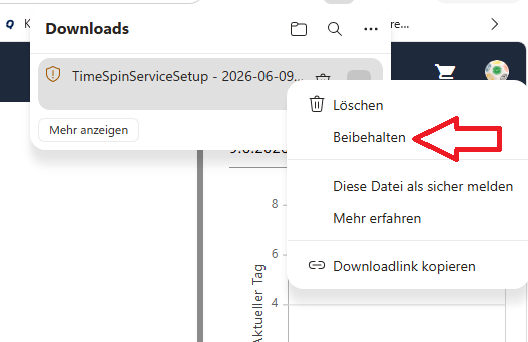
If your browser displays a security warning, select “Keep” to continue – the file is safe.

Im Next Step of the Installation Wizard
In the next step of the wizard, you will see a list of available TimeSpin devices in your vicinity.
Select the correct device. The MAC address can be found on the back of the enclosed manual.
After selecting the device, the final setup step will be completed.
4. Connect the TimeSpin Device
In the TimeSpin Portal, go to “Activity” > “Activate Service” and select your computer.
You can find the system name under “Windows Key > System Information > System Name.”
Check the box next to your service.
Then select your service from the selection window and click “Connect.”
Once the connection has been established, the device will stop flashing.
Click “Synchronize” to clear the data stored on the device and load the activity configuration.
5. Configure Sides & Create Activities
Each side of the dodecahedron can be assigned an activity, color, and description.
For example, sides can be configured as “Break,” “Meeting,” “Project A,” or “Research.”
Optional: Name the sides and create stickers for labeling the device.
Save your changes by clicking “Synchronize.”
Tip: To conveniently record break times, we recommend assigning one side to breaks. Give it any name you like and enable the “No time tracking” option. Times recorded using this side will then automatically be marked as break times and will not be included in the working-time calculation.
6. Start Time Tracking
Turn the dodecahedron so that the desired side is facing upward and can be read clearly – time tracking starts automatically.
When you turn the device to another side, the new activity is automatically detected and recorded.
Under “Activity” in the TimeSpin Portal, you can see the following in real time:
- Your current activity
- Your time history
- Your current side configuration
- Your time entries
You can create templates, delete entries, or add new activities at any time.
7. Analyze & Export Your Time Data
Click “Synchronize” to transfer recorded times to tables, calendars, or charts.
You can export your data as an Excel or PDF file.
🔋 Battery Replacement
The batteries have a very long service life. If the flashing becomes noticeably weaker and the device can no longer connect, the batteries need to be replaced.
The two halves of the dodecahedron are held together by magnets and can be pulled apart. If you look closely, you will notice a small gap between some of the sides.
Inside the device, there is a circuit board with one battery on each side.
Carefully lift out the circuit board, replace the batteries, and carefully put the circuit board back into position.
The circuit board has a small notch, which means it can only be inserted into the dodecahedron in the correct position.
Finally, put the two halves back together. Make sure they are correctly aligned: both halves have a small triangle, and these two triangles must be aligned with each other.